Install the Shopify app
Shopify stores connect through our Shopify app, Fulfillbot-Dropship & Branding. You install it in your Shopify admin, then link it to your Fulfillbot portal account. You can't connect a Shopify store by typing its address in the portal.
Before you start
- You need permission to install apps in your Shopify store.
- Have your portal sign-in ready. If you don't have an account yet, you can create one while linking.
1. Install the app
- Find Fulfillbot-Dropship & Branding in the Shopify App Store and install it. If the Stores page in the portal shows Connect Shopify, that button opens the same listing.
- Shopify asks you to approve the app's access: it reads your products and orders, adds a Fulfillbot Dropship location to your store, sets up the products you link (their SKU, inventory tracking, locations and cost), and accepts fulfillment requests for the orders we ship and adds their tracking.
- Shopify then opens the app's page in your Shopify admin.
2. Link the app to your portal account
- On the app's page, click Link to portal. The portal opens in a new browser tab.
- Sign in to the portal. If you don't have an account yet, create one from the sign-in page. After you verify your email and sign in in the same browser, the portal takes you back to the linking page.
- The Connect Shopify store page shows which store you're connecting and to which company. Read the warning, then tick the box that confirms you just clicked Link to portal in your own Shopify admin.
- Choose Import orders from: New orders only, Last 24 hours, Last 7 days or Last 30 days. Orders created in that period that are paid and not fulfilled yet are imported straight away.
- Click Confirm. The Stores page opens with your Shopify store on it, and we fetch your orders in the background.
- Go back to the Shopify tab and reload the app's page. It now shows the company the store is linked to.
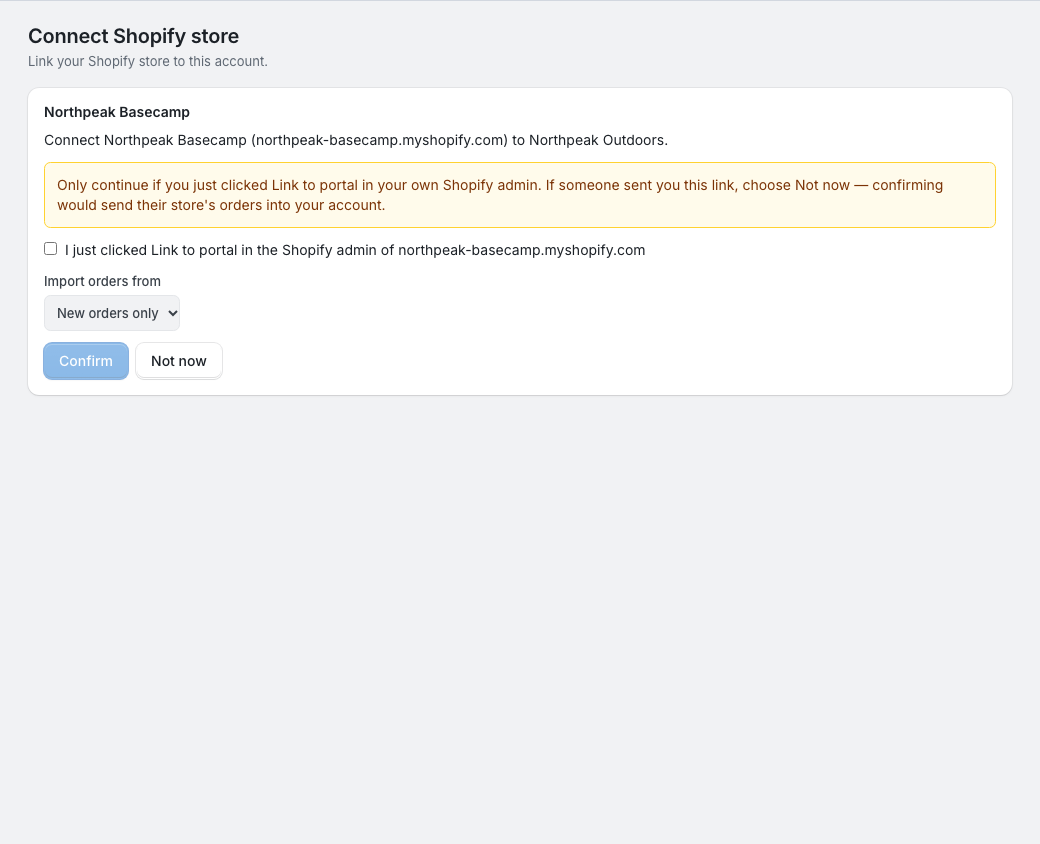
The link from Link to portal works for 30 minutes. If it has expired, the portal says "This link has expired": go back to the app in Shopify and click Link to portal again. Not now cancels the linking.
Only confirm a link you started yourself. If someone sent you a linking page, choose Not now: confirming would send their store's orders into your account.
3. Link your products
Linking the store doesn't link your products. On the Stores page, click Sync products on your Shopify store's card, then Manage products to link each variant to one of your products. See Link your store products.
The Fulfillbot Dropship location
The app adds a location called Fulfillbot Dropship to your Shopify store. Orders that Shopify sends to that location are the ones we ship: we request fulfillment for each paid order and accept it, within a few minutes. If you click Request fulfillment on an order yourself, we accept it the same way.
When you link a store product to one of your products (see Link your store products), we set it up in Shopify so that only the Fulfillbot Dropship location ships it:
- If the variant has no SKU, we set its SKU to your product's SKU. We never change a SKU you already have. Shopify only stocks a variant at the Fulfillbot Dropship location if it has a SKU.
- We turn off inventory tracking for it. We don't send stock counts to Shopify, so with tracking on it would show as sold out.
- We stock it at the Fulfillbot Dropship location.
- We remove it from your own locations, so Shopify sends its orders to us. Its stock counts there are deleted. Shopify can refuse to remove a location that still has unfulfilled orders for the variant; we try again once a day.
- We set its Cost per item to your price for that product with us, in your store's currency. It's the price of the goods only, without shipping or fees. We set it when you link the product; if your price changes later, link the product again to update it.
If you link a variant to a different product, we set it up again for the new product.
The variant's row under Linked shows how it went: "Ships from Fulfillbot" when everything is done, "Setting it up in Shopify…" while we work on it, or what's still missing, for example "Still stocked at 1 of your own locations in Shopify, because it has unfulfilled orders. Orders sent there aren't shipped by us. We'll try again within a day." Unlink doesn't change any of this back in Shopify.
The app's page in Shopify
Once the store is linked, the app's page in your Shopify admin shows:
- the company the store is linked to, and the masked email of the person who linked it;
- when the store last synced;
- Notify buyers when shipped: when it's on, Shopify emails your customer when we add tracking to their order. It's on for every new connection; turn it off if you send your own shipping emails;
- Open portal, and links to our privacy policy and terms.
Reconnect a Shopify store
If your Shopify store's card on the Stores page says Reconnect needed, we've lost access to the store. Open the app in your Shopify admin: that restores the connection, and the card shows Connected again. Then click Sync now to fetch orders that came in while we had no access. Tracking that was waiting is sent automatically within about an hour.
If linking doesn't work
- The portal says "This store is already connected to another account." The store is linked to a different portal account, and a store can belong to one account only. If it's your store, email [email protected].
- The portal says "This link has expired". Click Link to portal in the app again and finish within 30 minutes.
- The app's page still asks you to link the store: reload it after you click Confirm in the portal.
To remove the app or unlink the store, see Disconnect or uninstall.