Store orders
Orders from a connected store come in as dropship orders under Orders, with your store's order number. This page explains which orders come in, how to fix an order that waits for you, what happens when an order changes in your store, and how tracking gets back to the store.
Which orders come in
| Shopify | WooCommerce | |
|---|---|---|
| Imported | Orders that are Paid or Partially refunded, and Unfulfilled or In progress | Orders with status Processing |
| Treated as cancelled | Cancelled or fully refunded orders | Orders with status Cancelled, Refunded or Failed |
| Lines | Only items that need shipping, at their current quantity | Every line with a quantity |
An order only comes in if it was created on or after the Import orders from date you chose when you connected the store. A Shopify order that is partly fulfilled doesn't come in.
These orders don't come in, and the portal doesn't list them:
- orders with more than 200 lines, or with a line whose quantity is above 100,000;
- orders with no lines to ship.
If we should ship one of them, create it in Orders yourself (split it into orders within those limits), or email [email protected].
Orders that an earlier connection of the same store already imported, before you disconnected and connected again, aren't imported a second time: the earlier copy stays in Orders.
Orders to review
If you already have an order with the same order number, created in the portal or imported from a file, we don't import the store order. It waits at the top of the Stores page under Orders to review: "We didn't import these store orders because you already have an order with the same number." The same happens when another of your store connections already imported the same order.
- Import anyway fetches the order from your store again and imports it. If it's no longer waiting to be fulfilled in your store, nothing is imported and the portal says "This order wasn't imported — it's no longer awaiting fulfilment in your store, or it was already handled."
- Dismiss keeps it out for this connection.

Fix a store order
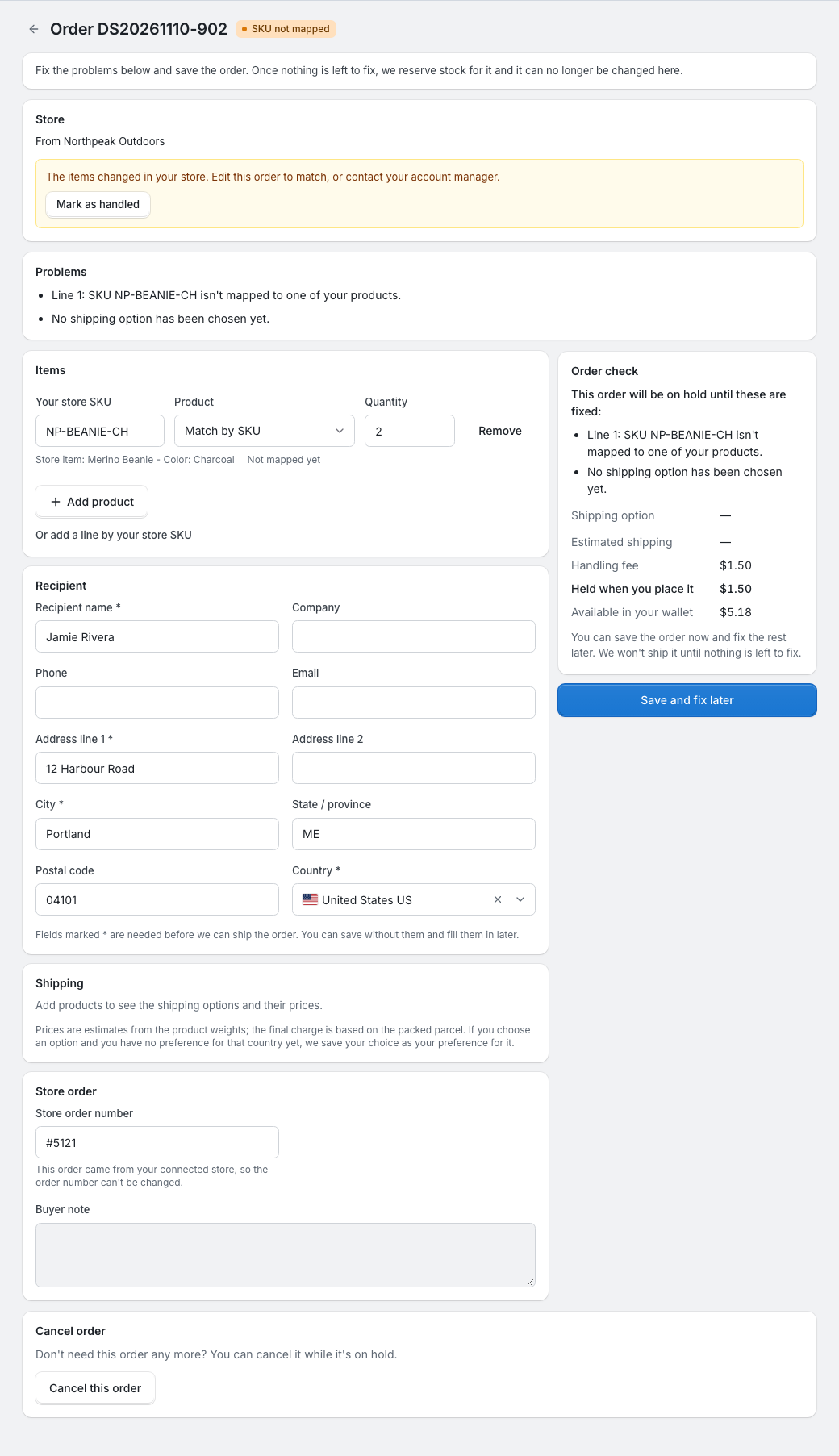
A store order with a problem waits in Orders, with the problem as its status, for example SKU not mapped. To fix it:
- link the store variant on the store's products page; orders waiting for that variant update straight away (see Link your store products);
- or add the SKU to one of your products in My products; orders waiting for that SKU update straight away;
- or open the order and edit it. You can change everything except the store order number, which comes from your store.
Once nothing is left to fix, the order goes ahead like any other order. You can edit or cancel an order only while it waits for you to fix something; after that, email [email protected] to change it.
When the order changes in your store
We pick up changes to imported orders through real-time updates, each time you click Sync now, and, if you connected with our WordPress plugin, at its automatic checks about every hour.
| Change in your store | The order still waits for you, or is Ready for fulfilment or Waiting for stock | We've started packing the order |
|---|---|---|
| Cancelled | We cancel it | We flag it: "This order was cancelled in your store after we started packing it." |
| New shipping address | We update the address | We flag it: "The shipping address changed in your store after we started packing this order." |
| Different items | We flag it | We flag it |
Once an order no longer waits for you, you can't edit it: email [email protected]. For changed items, the flag says "The items changed in your store. Edit this order to match, or contact your account manager." while the order still waits for you, and "The items changed in your store, but this order can no longer be edited. Contact your account manager to update it." after that.
An order shown as Awaiting payment is either Ready for fulfilment (we released its stock because the payment wasn't made in time) or already being packed (shipping is waiting for your payment). The first is in the left column, the second in the right one.
Shopify only: if Shopify sends some items of an order to one of your own locations instead of the Fulfillbot Dropship location, we flag the order: "Shopify assigned some items in this order to one of your own locations. Contact your account manager to agree who ships them, so they aren't shipped twice." Our order still contains those items and we process it as usual unless we agree otherwise, so tell us before you ship them yourself. This only happens while a linked product is still stocked at one of your locations: its row under Linked says why. Once you click Mark as handled, the flag doesn't come back for that order.
A flag shows on the order's Store card. Once you've dealt with it, click Mark as handled. A flag can only get more serious: a cancellation replaces an address change, for example.
Orders you ship yourself
Shopify: if you fulfil the whole order in Shopify before we start packing it, we close it in the portal as Fulfilled by you in your store and don't ship it. If we've already started, or you fulfil only part of it, we flag it: "This order was marked as fulfilled in your Shopify store. If you don't want us to ship it, contact your account manager." If you undo the fulfilment in Shopify, the order opens again.
WooCommerce doesn't tell us when you ship an order yourself: marking it Completed in WooCommerce changes nothing in the portal. If we shouldn't ship it, cancel it in WooCommerce. We cancel our order too, as long as we haven't started packing it; otherwise email [email protected].
Tracking back to your store
When we ship a store order, we send the tracking to the store: in Shopify as a fulfilment from the Fulfillbot Dropship location, in WooCommerce through a tracking plugin or an order note (see Connect WooCommerce). The order's Store card shows how it went:
- "Tracking sent to your store."
- "Sending tracking to your store…" while we're still trying. If the store doesn't answer, we keep trying automatically, up to 6 attempts in all over about 31 hours. While the store needs reconnecting, tracking waits and goes out within about an hour after you reconnect.
- "We couldn't send tracking to your store." Click Send tracking again, or add the tracking number in your store yourself.
- "We didn't send tracking: this order has nothing left to fulfil in your store." Shopify only: it was already fulfilled or cancelled in the store.
- "Tracking hasn't been sent to your store." Click Send tracking again.
- "This store is disconnected. Add the tracking number in your store yourself."
If we correct the tracking number after shipping, we send the new number to your store automatically. In WooCommerce, what happens to the old number depends on how the tracking is shown. With the Shipment Tracking extension, the Advanced Shipment Tracking plugin or an order note, the old number stays on the order next to the new one. If our WordPress plugin shows the tracking, the new number replaces the old one.
In Shopify, Notify buyers when shipped on the app's page decides whether Shopify emails your customer. See Install the Shopify app.
Cancelling
- Cancelled in your store: see the table above.
- Cancelled in the portal: your store's order isn't touched. Cancel or refund it in your store yourself.
- Shopify, after we accepted the order: Shopify no longer offers Cancel order, only Request cancellation. If we haven't started packing it, we cancel our order and accept the request. Shopify then cancels only the fulfillment request: the order itself stays open in Shopify as unfulfilled, so cancel or refund it there if you want to; we won't import it again. If we've already started packing, we decline, and Shopify shows "Fulfillbot has already packed or shipped this order."; email [email protected] if you still want to stop it.